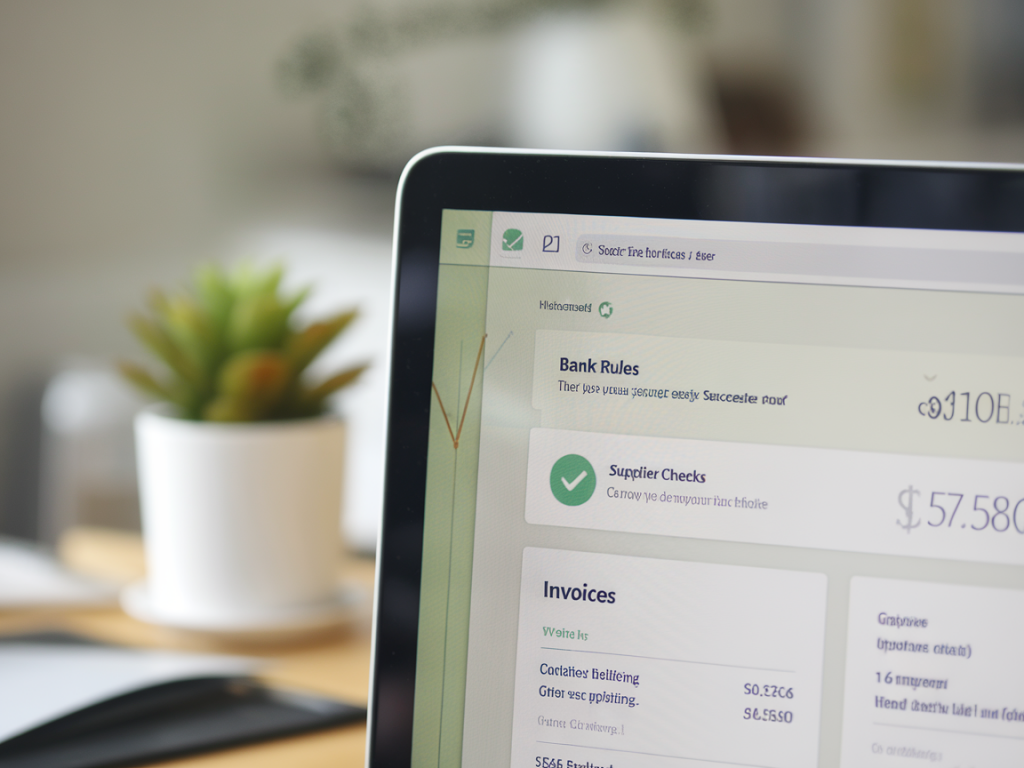
Duplicate supplier invoices and miscategorised bank transactions are two of the most common, quietly expensive problems I see when I step into a micro or small business’ bookkeeping. They inflate costs, distort margins and, over time, erode trust in your financial reports. Xero’s bank rules and a simple supplier-check workflow are powerful, low-effort tools to stop duplicates happening in the first place and to keep your margin accurate. Below I’ll walk you through the practical steps I use with clients to set them up and keep them working for you.
Why bank rules and supplier checks matter
Bank rules in Xero let you automatically code and match incoming bank feed lines. That saves time, reduces manual errors and helps ensure transactions are assigned to the right account. But automation alone isn’t enough: if you haven’t got a consistent supplier-check process, you can still pay the same supplier twice or import duplicate bills into Xero from different sources (email, supplier portal, OCR apps).
Combine bank rules with a short supplier verification routine and you get three immediate benefits:
- Fewer duplicates: automated matching prevents creating new bills when a payment or receipt already exists.
- Cleaner margins: costs are coded consistently so gross margin calculations are reliable.
- Faster reconciliations: bank reconciliation becomes a quick review instead of a detective exercise.
Before you start: quick housekeeping
Do these three things first — they make the rules you create far more effective.
- Make sure your bank feed is connected and up-to-date in Xero.
- Standardise supplier names in the Contacts list — pick a single canonical name for each supplier and merge duplicates (Xero lets you merge contacts).
- Decide your default expense accounts for common purchases (e.g., Office Supplies, Subcontractors, Software). Consistency is key.
How to set up Xero bank rules that actually help
I use a simple, repeatable pattern for each rule: match + code + description. Follow these steps in Xero:
- Open Accounting → Bank accounts → Reconcile, then pick a bank account and click “Create rule”.
- Choose whether the rule applies to payments or receipts.
- Under Condition, pick how Xero should recognise the transaction. Start with obvious identifiers: bank account name, reference text from supplier, or amounts (if regular fixed amounts exist).
- Under Action, set the contact (supplier), the payment account (expense or revenue account), and tax rate. Add a default description that uses variables (e.g., {Narrative} or {Reference}).
- Save the rule and test it on recent unreconciled lines. Don’t enable too many “broad” rules — overly generic rules risk misclassifying transactions.
Example rules I commonly use:
- “Stripe fees” — condition: description contains “Stripe”; action: Payment Account = Merchant Fees; Tax = VAT N/A.
- “Monthly software subscription” — condition: reference contains the supplier name or exact amount; action: Payment Account = Software subscriptions.
- “Refunds / credit notes” — condition: amount is positive/negative and description contains “refund”; action: allocate to the original revenue code.
Tips to avoid creating new duplicates with rules
- Prefer specific text matches over broad matches. “Ltd” or “PAYMENT” are too generic.
- Use separate rules for suppliers that have multiple trading names (map each to the same Contact in Xero).
- When a rule applies to a supplier that sometimes invoices for different things, set the rule to suggest a transaction rather than auto-create it. Review suggested matches before confirming.
- Regularly review recently applied rules (monthly) and tweak conditions as supplier statements or descriptions change.
Supplier checks: a short workflow to stop duplicate invoices
Even with perfect bank rules, duplicate invoices can arise when bills are received by email, downloaded from portals, or captured via apps like Dext or Hubdoc. I recommend a three-step supplier-check workflow that takes minutes and prevents costly errors:
- Step 1 — Central capture: Choose one capture method for supplier invoices (e.g., supplier email address forwarded to Hubdoc, or a single email inbox). The aim is to avoid multiple team members saving the same file to different places.
- Step 2 — Quick search before creating: Before creating a new bill in Xero, search the supplier’s Contact page for the invoice number, date, or approximate amount. Xero search is fast and saves time compared with recreating the same bill.
- Step 3 — Tag duplicates: If you find the same invoice, mark the new document as a duplicate in your capture app (most apps support a “duplicate” or “ignore” action) and delete the extra file. If a payment exists in Xero, link it to the existing bill rather than creating a new one.
This routine pairs well with bank rules because the bank rule will match the payment to the existing bill if the contact and amounts line up. If they don’t, your check will flag the mismatch so you can investigate before the reconciliation is finalised.
Practical checks and a quick reconciliation table
When reconciling, I run through a short checklist to keep things tight. Here’s a simple table you can copy into your accounting SOP or checklist document:
| Check | Action |
| Does the bank line match an existing bill? | Link to bill in Xero. If no bill exists, create one with the supplier contact and matching amount/reference. |
| Is the supplier contact consolidated? | Merge duplicate contacts and update the bill/contact to the canonical name. |
| Is VAT coding consistent? | Confirm VAT rate on bill matches supplier VAT invoice; correct if needed. |
| Does the transaction match a bank rule? | If matched by rule, check it’s accurate; if not, adjust the rule or manually reconcile and update rule. |
Common problems and how I fix them
Here are some scenarios I encounter and the fixes I recommend:
- Supplier uses different trading names: Merge all variations to one contact and create rules for the most common name fragments.
- Invoices paid before they’re entered: Create the bill and immediately reconcile payment to it — don’t create a second expense transaction.
- OCR apps create duplicates: Configure the app to publish to a single “Inbox” and train your bookkeeper to check the inbox before publishing to Xero.
Monitoring and maintenance
Set a 15–30 minute monthly session in your calendar to:
- Review recently applied bank rules and the “unreconciled” bank feed lines.
- Search for duplicate contacts and merge them.
- Check for unusual transactions or frequent rule misfires (Xero shows how many times a rule was used).
Small, regular maintenance prevents the pain of large clean-ups later. For micro businesses I work with, this monthly habit has saved hours of reconciliation time and recovered margin that was being hidden by duplicate costs.
If you’d like, I can prepare a starter bank rule sheet tailored to common UK suppliers (e.g., HMRC PAYE, major utilities, popular SaaS vendors) that you can import into Xero as a checklist. Just tell me the top five suppliers you use and I’ll draft the suggestions.